🌐 Overview
The Dashboard provides a real-time snapshot of:
- Overall WhatsApp ticket volume
- Ticket status breakdown (Active, Resolved, Closed)
- Support team performance metrics
- Quick filters to narrow down views
Access Requirements
Authorised user can access this dashboard.
🧭 Dashboard Layout
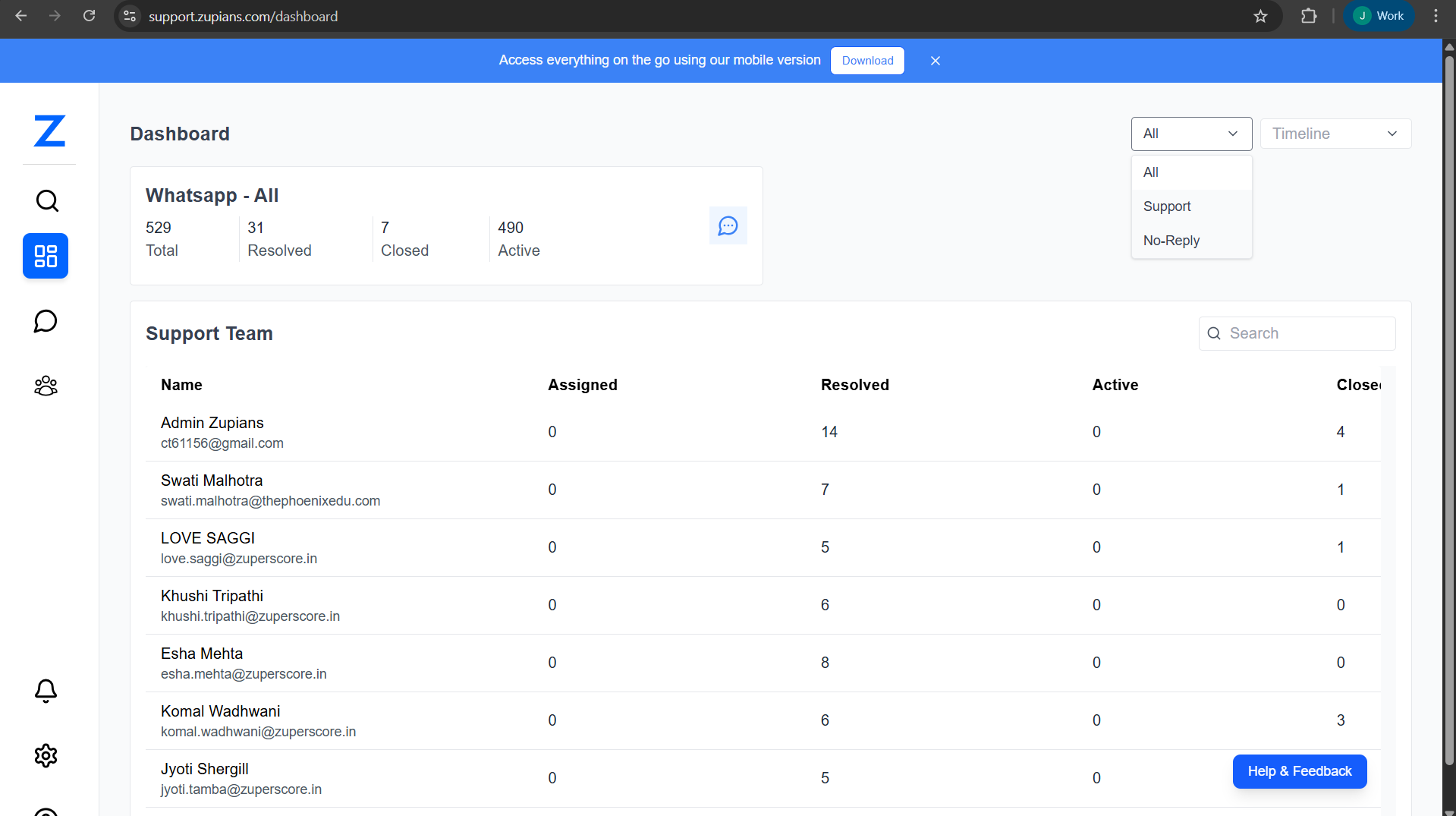
The dashboard is divided into three main sections:
- Top Summary (WhatsApp – All)
- Filters & Timeline Controls
- Support Team Performance Table
📊 WhatsApp – All (Top Summary)
This section gives a high-level overview of all WhatsApp conversations.
Metrics Explained
| Metric | Description |
|---|---|
| Total | Total number of WhatsApp conversations received |
| Resolved | Conversations successfully resolved by the team |
| Closed | Conversations manually or automatically closed |
| Active | Ongoing conversations awaiting action |
Usage Tip
Use this section for quick daily health checks of your support load.
🎛️ Filters & Controls
Located at the top-right of the dashboard.
🔽 Channel Filter
Options include:
- All – View all conversations
- Support – Only support-related chats
- No-Reply – Only No-Reply chats This helps isolate unattended or critical conversations quickly.
🕒 Timeline Filter
- View data for Today, This Week,This Month,Last 3 Months and This Year
- All metrics and tables update automatically based on selection
👥 Support Team Performance
This table shows individual agent performance metrics.
Columns Explained
| Column | Description |
|---|---|
| Name | Support agent name and email |
| Assigned | Number of tickets currently assigned |
| Resolved | Tickets resolved by the agent |
| Active | Active tickets currently being handled |
| Closed | Tickets closed by the agent |
Key Insights
- Identify high performers based on resolved count
- Spot workload imbalance (high Active vs Resolved)
- Monitor inactive or overloaded agents
🔍 Search Support Team
- Use the Search box to find agents by name
- Results filter instantly
🧪 Step-by-Step Workflows
📈 Daily Support Monitoring
- Open Dashboard after login
- Check Active vs Resolved counts
- Filter by No-Reply to catch No-Reply chats
👥 Team Performance Review
- Set timeline to Today,This Week,This Month,Last 3 Months, This Year
- Compare resolved vs closed
✅ Best Practices
🏃 Operational Efficiency
- Check dashboard at the start and end of the day
- Use timeline filters for weekly reporting
🧠 Data Accuracy
- Ensure agents close or resolve tickets properly
- Avoid leaving conversations in Active unnecessarily
❓ Frequently Asked Questions (FAQ)
1. Who can access the Dashboard?
Authorised users can Access.
2. Does the dashboard update in real time?
Yes, metrics refresh automatically based on live data.
3. What does “No-Reply” mean?
Chats where student have messaged but no agent response exists or show broadcast message sent to student for information by support Team .
4. Can I export dashboard data?
Currently, dashboard data is view-only. Use reports or exports from related modules if enabled.
5. Why do some agents show zero Active tickets?
They may have resolved or closed all assigned conversations.
6. Does changing the timeline affect all sections?
Yes, summary metrics and team tables update together.
8. Why is Total much higher than Resolved?
It indicates a backlog or high inflow of new conversations.
📌 Summary
The Dashboard helps you:
- Monitor WhatsApp support health in real time
- Track team productivity and workload
- Identify unattended or high-priority conversations
Use it daily to keep support operations smooth and responsive.