🌐 Overview
The WhatsApp Templates module provides:
- Template creation and management tools
- Compliance with WhatsApp Business policies
- Template status tracking and approval workflow
- Broadcast history and performance analytics
- Category-based template organization
Authorized users can access this module.
🧭 Navigation Path
WhatsApp → Templates
The WhatsApp module menu includes:
- Dashboard
- Templates
- Broadcasts
- Support Chat
- No-Reply Chat
- Tickets
- Queries
- Tags List
- Settings
- Chatbot
📋 Templates Dashboard Overview
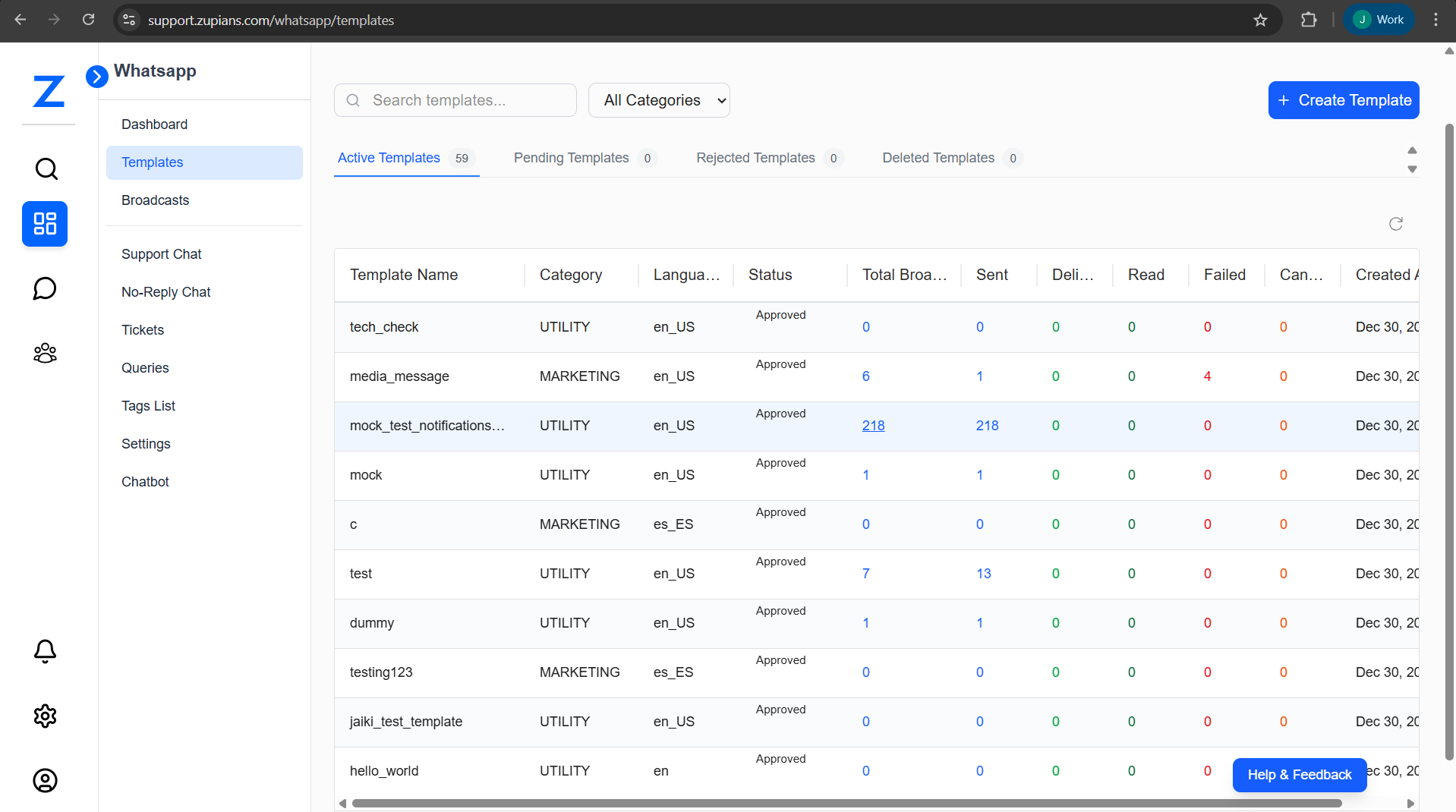
The Templates Dashboard provides a centralized view of all WhatsApp templates created within the system.
Dashboard Sections
-
Search Bar – Search templates by name
-
Category Filter – Filter templates by category
-
Status Tabs
- Active Templates
- Pending Templates
- Rejected Templates
- Deleted Templates
-
Create Template – Create a new WhatsApp template
📊 Template List Details
Each template row displays key information and usage metrics.
Template Information
| Field | Description |
|---|---|
| Template Name | System-unique template identifier |
| Category | Utility or Marketing |
| Language | Template language (e.g., en_US, es_ES) |
| Status | Approval status from WhatsApp |
| Total Broadcasts | Number of times the template was used |
| Sent | Messages successfully sent |
| Delivered | Messages delivered to recipients |
| Read | Messages read by recipients |
| Failed | Messages that failed delivery |
| Cancelled | Cancelled message attempts |
| Created At | Template creation date |
➕ Create WhatsApp Template
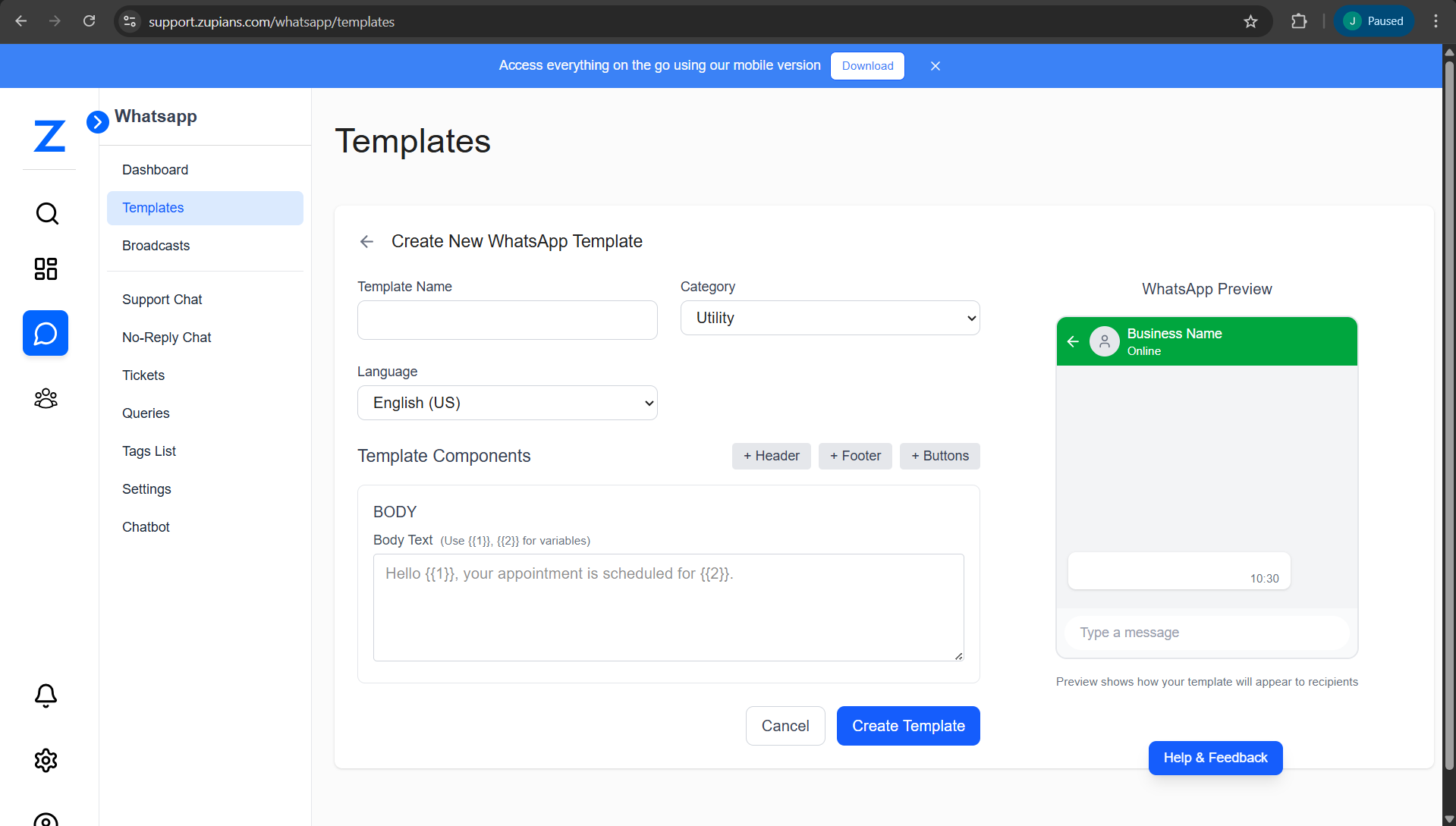
Click Create Template to configure a new WhatsApp template.
🔧 Creation Workflow
- Click Create Template
- Enter Template Name (unique, lowercase, underscores allowed)
- Select Category (Utility / Marketing)
- Select Language (e.g., English – US)
- Configure Template Components
- Review message in WhatsApp Preview
- Submit the template for WhatsApp approval
✏️ Update Template Workflow
- Open an existing template from the list
- Click Edit Template
- Update required fields or components
- Review changes in WhatsApp Preview
- Click Update Template
Updating an approved template may require re-approval by WhatsApp depending on the changes.
🧩 Template Components
Templates are built using modular components. Only Body is mandatory.
📝 Header (Optional)
- Format: Text
- Purpose: Short title displayed at the top of the message
Example:
Meeting Link
📜 Body (Required)
- Main message content
- Supports dynamic variables using double curly braces
Example:
Hello {{user}}, please join the meeting on {{link}}
Buttons (Optional)
Buttons allow recipients to take quick actions from WhatsApp.
Supported button type:
- Quick Reply
Example:
- Button Text:
Join Meeting
Footer (Optional)
- Informational text displayed at the bottom
- Maximum 60 characters
Example:
Zupians Support
Template Categories
Utility Templates
Used for transactional, operational, and system-generated messages.
Common Use Cases:
- Exam / score notifications
- Ticket or case updates
- Account or service alerts
Marketing Templates
Used for promotional and engagement-based communication.
Common Use Cases:
- Campaign announcements
- Feature promotions
- Engagement reminders
🔄 Template Variables
Variables allow dynamic values to be passed at the time of sending messages.
Variable Rules
| Rule | Description |
|---|---|
| Sequential Order | Variables must be sequential (param_0, param_1, param_2…) |
| Runtime Mapping | Variables are mapped to runtime data |
| Missing Values | Missing values are shown as NA |
Example Mapping
param_0 → User Name
param_1 → Total Score
param_2 → English Score
param_3 → Math Score
🔍 Template Preview
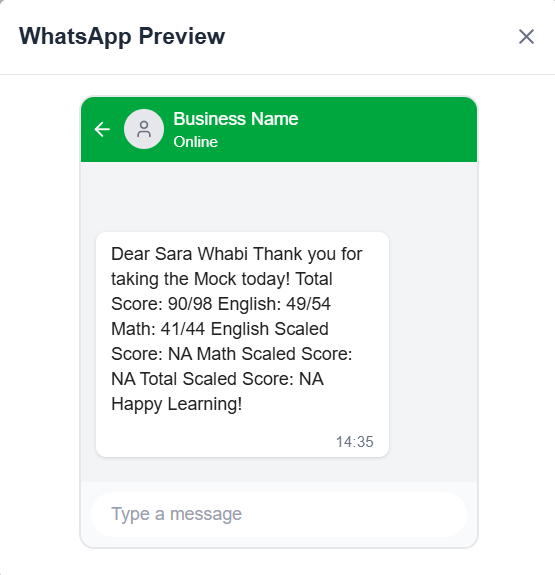
The Preview option displays how the message appears to the end user on WhatsApp, including:
- Business name header
- Message content
- Variable-substituted values
This helps validate formatting and content before usage.
Broadcast History
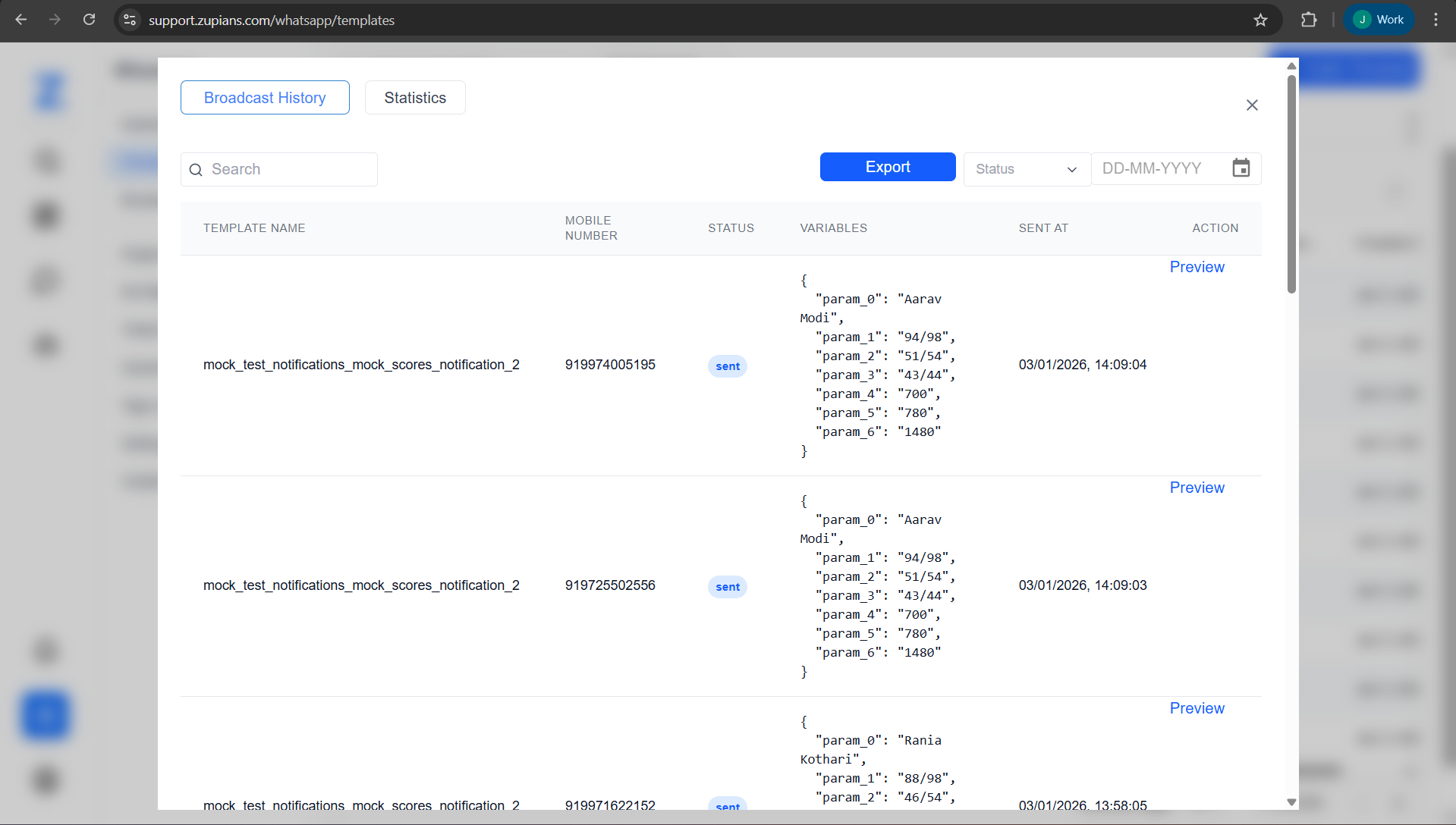
Each template provides access to its broadcast history(how many times template used so far).
Broadcast History Details
- Template Name
- Mobile Number
- Status (Sent / Failed)
- Variables Used (JSON payload)
- Sent At timestamp
- Preview option
📊 Statistics
The Statistics view provides insights into template performance.
Performance Metrics
- Total messages sent
- Delivery success rate
- Read count
- Failure metrics
Monitor delivery and read rates to optimize template performance and user engagement.
🔄 Template Status Lifecycle
- Pending – Submitted and awaiting WhatsApp approval
- Approved – Available for broadcasts and automations
- Rejected – Rejected due to policy violations or formatting issues
- Deleted – Removed from active usage
🔗 Usage Across Modules
Approved templates can be used in:
- WhatsApp Broadcasts
- Automated Notifications
- Support and No-Reply Chats
- Chatbot workflows
✨ Best Practices
- Keep messages concise and user-friendly
- Avoid promotional language in Utility templates
- Ensure variable order matches backend payload
- Use Preview before sending broadcasts
- Create separate templates for different use cases
⚠️ Common Issues & Resolutions
| Issue | Reason | Resolution |
|---|---|---|
| Template Rejected | Promotional content in Utility | Rewrite content neutrally |
| NA values shown | Missing variable data | Ensure payload mapping |
| Low read rate | Message too long | Shorten content |